
Setting Up 4K Capture
Last updated
Getting genuine 4K60 with full 4:4:4 chroma sampling — not scaled, not subsampled — depends on getting three things right together: the card, the cable, and the driver mode.
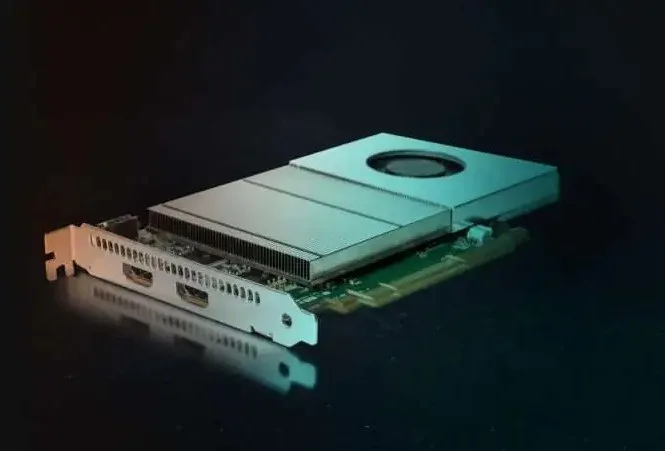
Card: only our XtremeDV-UHD2 and XtremeDV-DP2 deliver true 4K60 4:4:4 on both channels simultaneously. Older XtremeAV/XtremeRGB cards top out at HD or a single 4K channel at reduced chroma — check the spec table on the individual product page before assuming "4K" means the same thing across the range.
Cable: full-bandwidth HDMI 2.0 (18Gbps) needs a certified Premium High Speed cable, especially past 2 metres. A cheap or overlength cable is the single most common cause of a "4K signal but no lock" support call.
Driver mode: our unified Windows/Linux driver exposes capture resolution and colour depth to any DirectShow or Media Foundation-compatible application — confirm your capture software (OBS, vMix, Wirecast, Panopto) is actually requesting the 4:4:4 mode rather than defaulting to a lower-bandwidth 4:2:0 setting, which some encoders select automatically to reduce CPU load.
See the full spec on the XtremeDV-UHD2 product page, or our guide to the best capture card for live streaming if 4K streaming specifically is the goal.